Some Google Workspace organizations restrict third-party app access. If your administrator has those restrictions enabled, you will see this error when you try to authorize Brief.
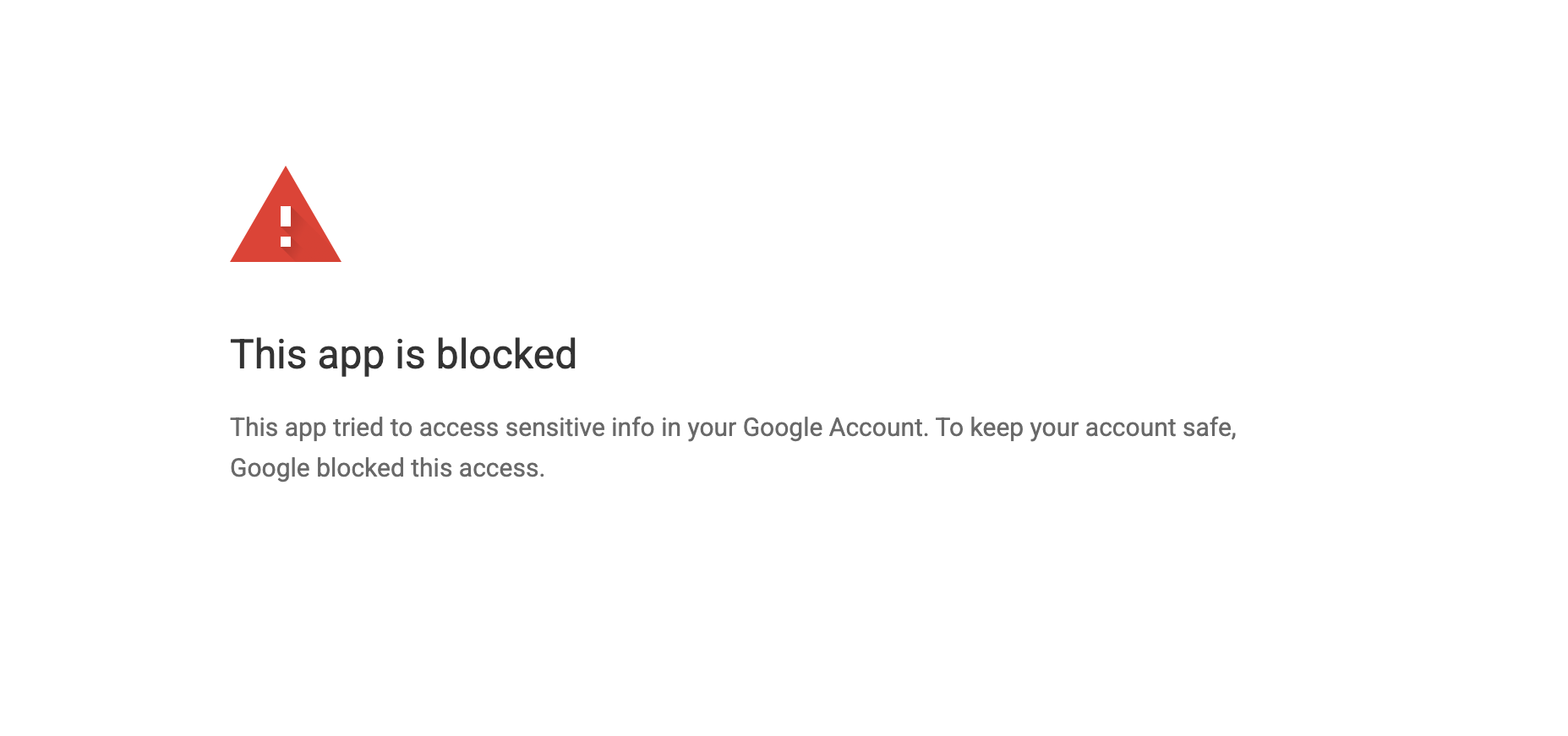
This is not a Brief error. Google is blocking the connection because Brief has not been added to your organization's allowlist. You cannot authorize Brief yourself. Your Google Workspace administrator has to add Brief to your organization's trusted apps.
Updating Trusted Apps in Google Workspace
This section walks a Google Workspace super admin through the steps to authorize Brief for their organization's users. It applies specifically to organizations that have configured API access control to "Restricted" — meaning all third-party apps are blocked by default unless explicitly allowlisted.
Brief is a Google-verified app and will appear in search results by OAuth client ID. The entire process takes approximately 5 minutes once you are logged in as a super admin.
Prerequisites
Before starting, confirm you have:
- Super admin access to your Google Workspace Admin Console (admin.google.com)
- Brief's OAuth Client ID (provided below)
- A determination of which organizational units (OUs) should have access to Brief
Brief's OAuth Client ID:
246552337216-mdfgjiirek3ol0p6uai9h4agu1cabo22.apps.googleusercontent.com
Step 1: Navigate to App Access Control
- Sign in to admin.google.com as a super admin.
- In the left navigation menu, go to Security > Access and data control > API controls.
- On the API Controls page, locate the "App access control" section.
- Click MANAGE APP ACCESS.
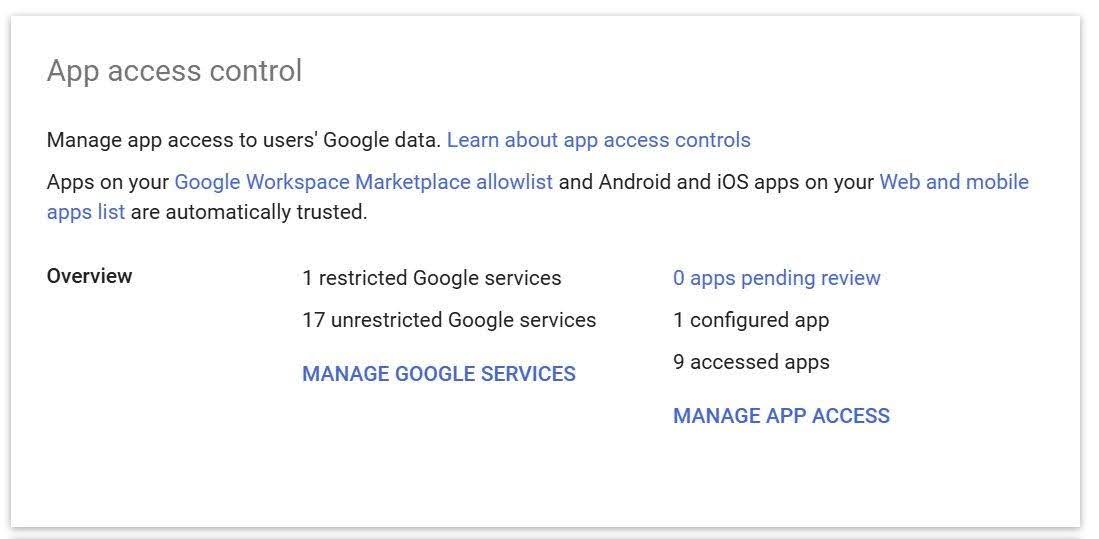
Figure 1: The App access control section. Click "MANAGE APP ACCESS" on the right side.
Step 2: Open the Configured Apps List
The Manage App Access screen shows three panels at the top (Google services, Apps pending review, and Configured apps) and a Configured apps table below. This is where allowlisted apps are managed.
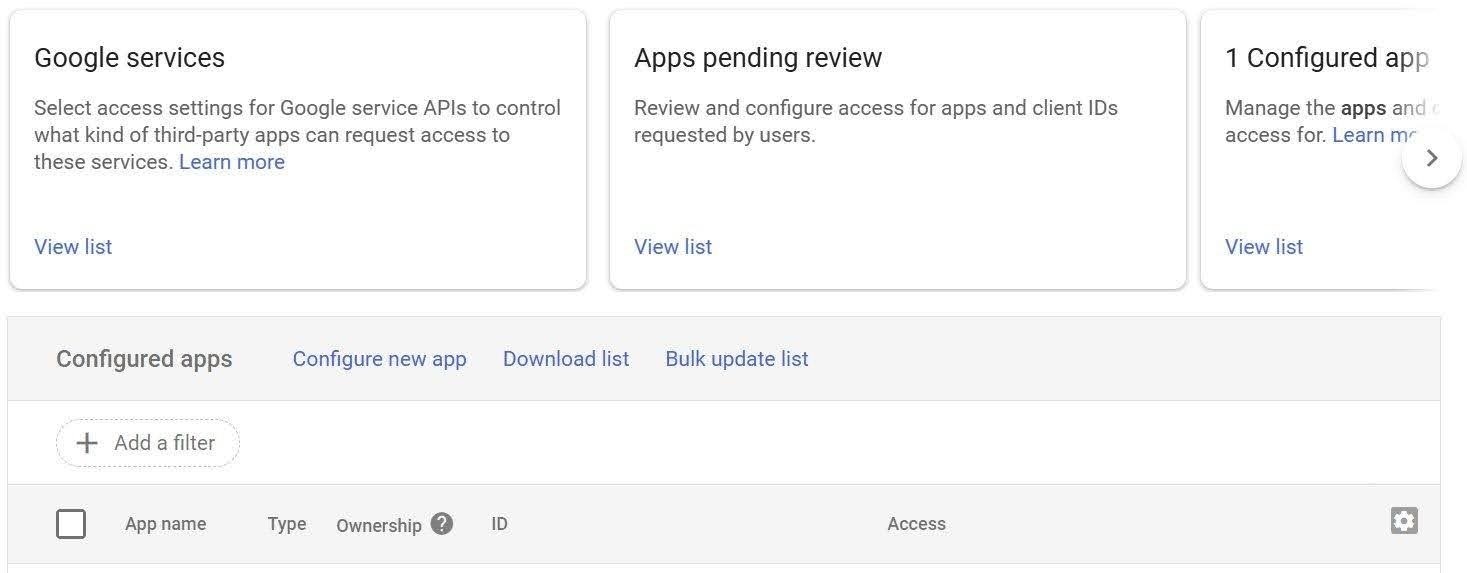
Figure 2: The Manage App Access screen showing the Configured apps table and "Configure new app" option.
In the Configured apps section header, click Configure new app.
Note: Do not click "Add app" if that option appears elsewhere — use "Configure new app" from the Configured apps header bar as shown in Figure 2.
Step 3: Search for Brief by OAuth Client ID
The "Configure new app" wizard opens with a 4-step flow: App > Scope > Access to Google Data > Review.
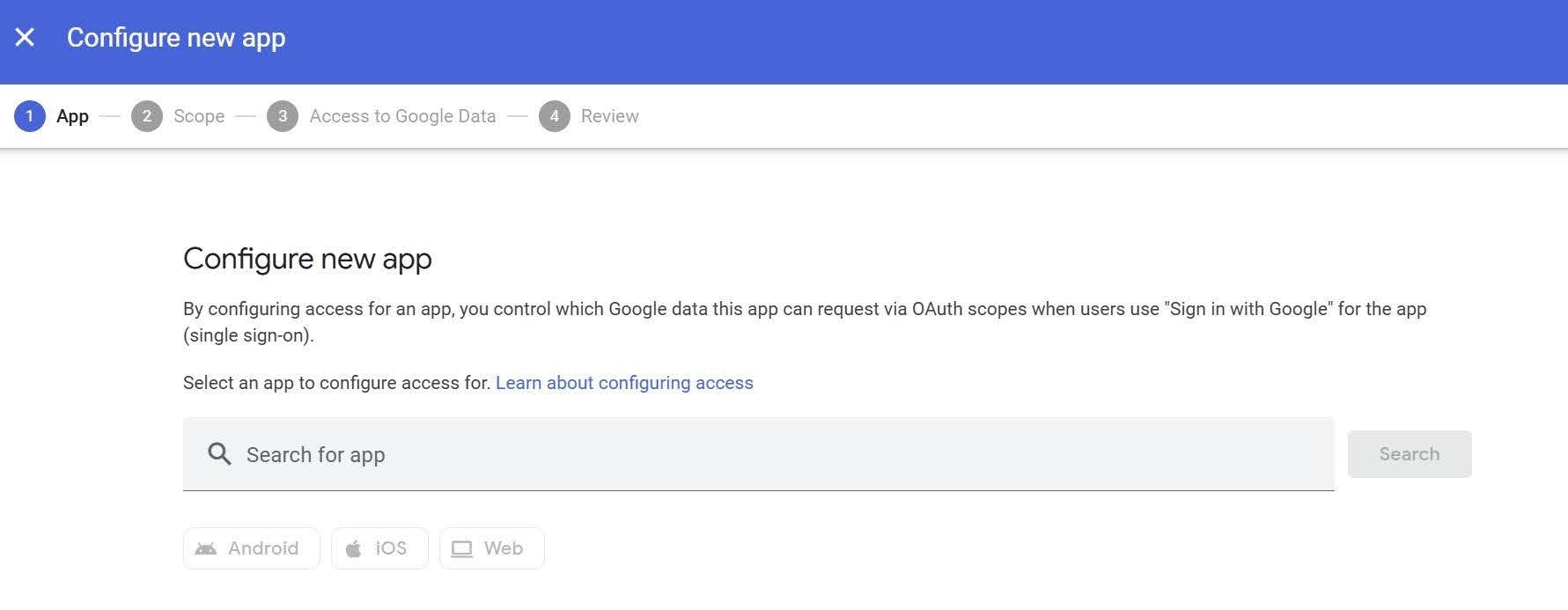
Figure 3: The Configure new app screen. Paste Brief's OAuth Client ID into the search box and click Search.
In the Search for app field, paste Brief's full OAuth Client ID:
246552337216-mdfgjiirek3ol0p6uai9h4agu1cabo22.apps.googleusercontent.com
Click Search.
Brief will appear in the results as "Brief - Executive Intelligence" with a green Verified badge, type Web, and the matching Client ID (see Figure 4 below).
Click on the Brief result row to select it, then click Select to proceed.
Note: Brief is Google-verified — you will not see an "unverified app" warning.
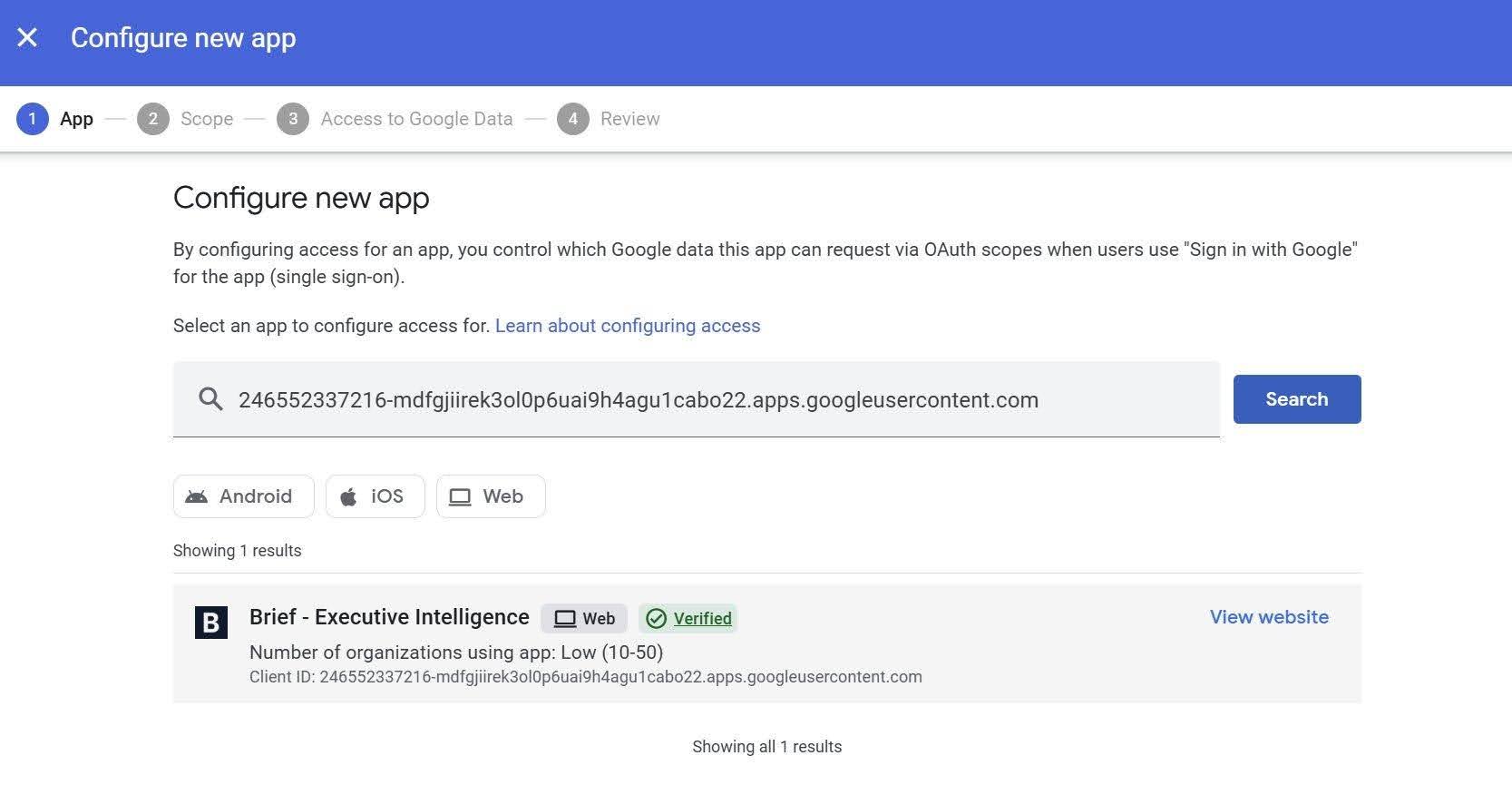
Figure 4: Brief - Executive Intelligence appears in search results as a verified Web app with the correct Client ID.
Step 4: Complete the Configuration Wizard
After selecting Brief, the wizard advances through the remaining three steps:
Step 2 of 4 — Scope
Review the OAuth scopes Brief requests. These represent the Google Workspace data Brief will access on behalf of your users (e.g., Gmail, Calendar). Click Continue.
Step 3 of 4 — Access to Google Data
Select the access level for Brief:
- Trusted — Recommended. Grants Brief access to all Google Workspace OAuth scopes it requests, including restricted services like Gmail and Calendar.
- Specific Google data — Advanced option. Allows you to manually specify which scopes Brief is permitted to access.
Select the organizational units (OUs) this access applies to. You can apply it to the entire organization or limit it to specific departments.
Step 4 of 4 — Review
Review your selections and click Finish (or Configure). Brief will now appear in the Configured apps table.
Verification
After completing the wizard, confirm the configuration:
- Return to the Configured apps list (Security > API controls > Manage App Access).
- Brief should appear in the table with Type: Web, Ownership: Third-party, and an Access status showing the OU(s) you configured.
- Have a user in the authorized OU sign into Brief using "Sign in with Google." The OAuth flow should complete without error.
User Experience After Authorization
Once Brief is allowlisted in Google Workspace, users in the authorized OUs will see the standard Google OAuth consent screen when connecting their account to Brief. The connection will complete successfully. Users who attempt to connect before the allowlist entry is in place will receive a Google Error 400: admin_policy_enforced message — this is resolved by completing the steps above.