Some Microsoft 365 organizations require administrator consent before users can authorize third-party applications. If your administrator has those restrictions enabled, you will see this screen when you try to sign in to Brief with your Microsoft account:
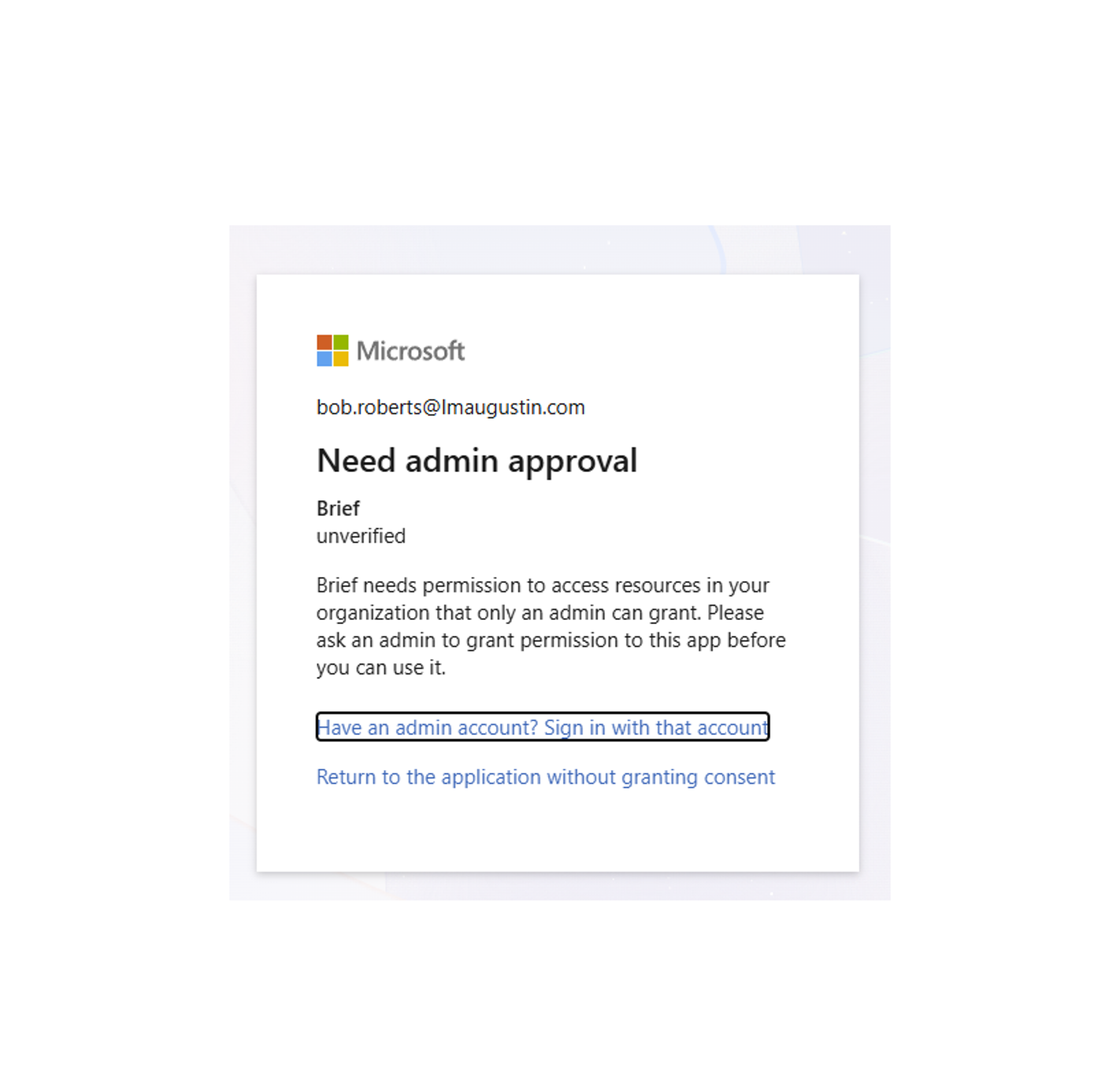
This is not a Brief error. Microsoft is blocking the connection because Brief has not yet been granted admin consent in your organization's tenant. You cannot authorize Brief yourself. Your Microsoft administrator has to grant consent for Brief on behalf of the organization.
What to send your Microsoft administrator
Forward the steps below to whoever manages Microsoft 365 at your company. This is typically IT, Operations, or a designated admin. These steps require the Global Administrator, Application Administrator, or Cloud Application Administrator role in Microsoft Entra.
1. Sign in with an admin account
Sign in to Microsoft using an account with one of the roles listed above.
2. Open the Brief admin consent URL
In the same browser session, go to:
https://app.trybrief.ai/api/v1/oauth/microsoft/admin-consent
3. Review and accept the consent prompt
Review the permissions Brief is requesting and click Accept. This installs Brief as an authorized application in your Microsoft 365 tenant.
After your admin completes these steps
Brief will appear in your tenant under Microsoft Entra admin center → Enterprise applications → All applications. From there, your administrator can select Brief to manage access, including limiting sign-in to specific users or groups if they prefer not to enable it for everyone in the organization.
Return to Brief and sign in again with your Microsoft account. The authorization screen should now appear normally.