Brief is currently completing Google's app verification process. While verification is in progress, Google adds extra confirmation steps the first time you connect a Google account to Brief. The steps below show what to expect and how to proceed.
These extra screens are Google's standard process for any third-party app that has not yet completed verification. They are not specific to Brief and they are not a signal about the security of the application. Once Brief finishes verification, new users will not see them.
Step 1: Choose your Google account
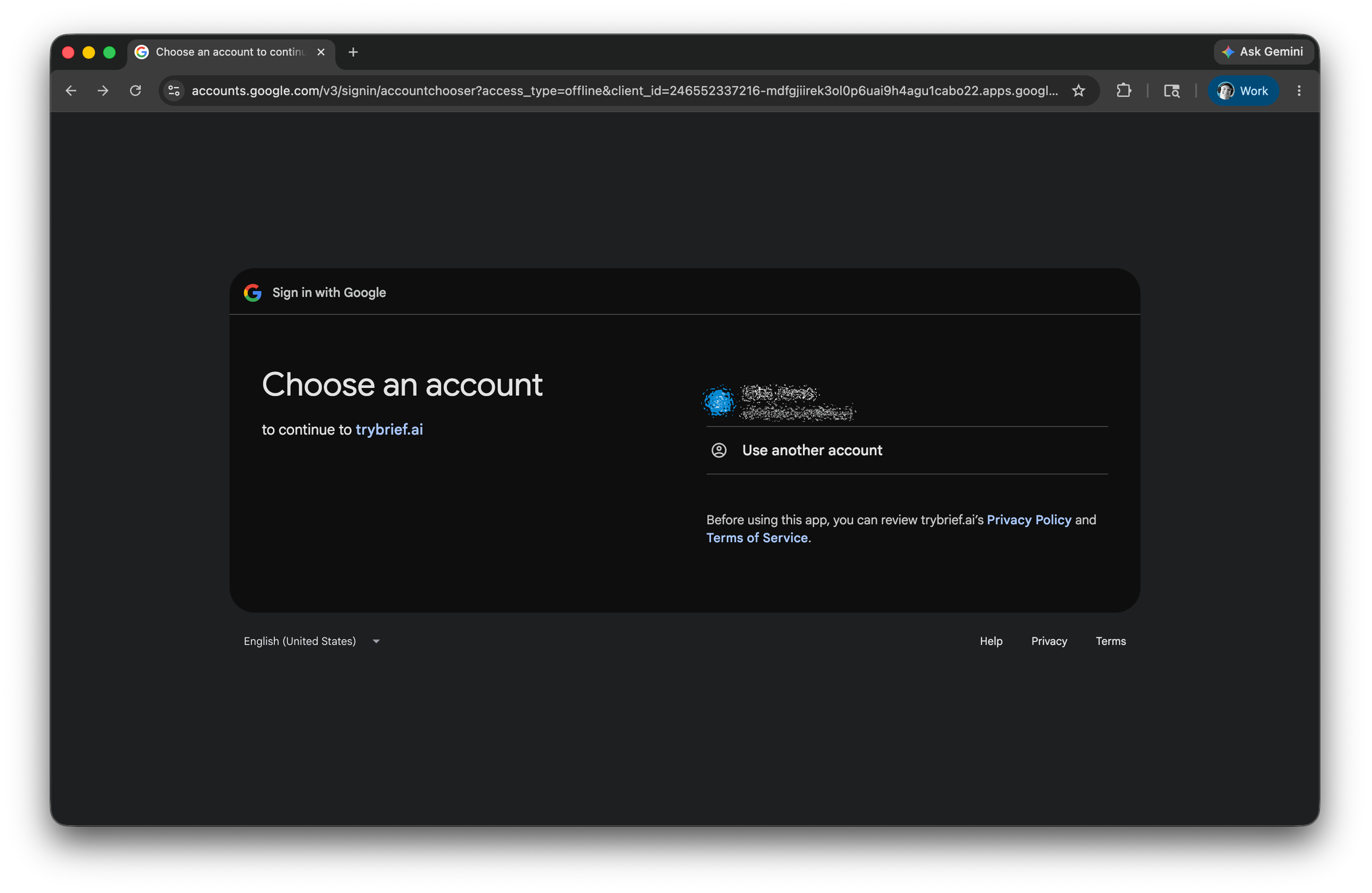
Google's account chooser.
Select the Google account to connect to Brief. This needs to be the same account that received the application invite. Logins to Brief are managed through an "invitation-only" process and only your specific email address was authorized for login. However, you can add your other email accounts to Brief once you have logged in with the initial authorized email address.
If you signed in to Google with a different account by mistake, choose Use another account and sign in with the correct one.
Step 2: Click through the unverified-app warning
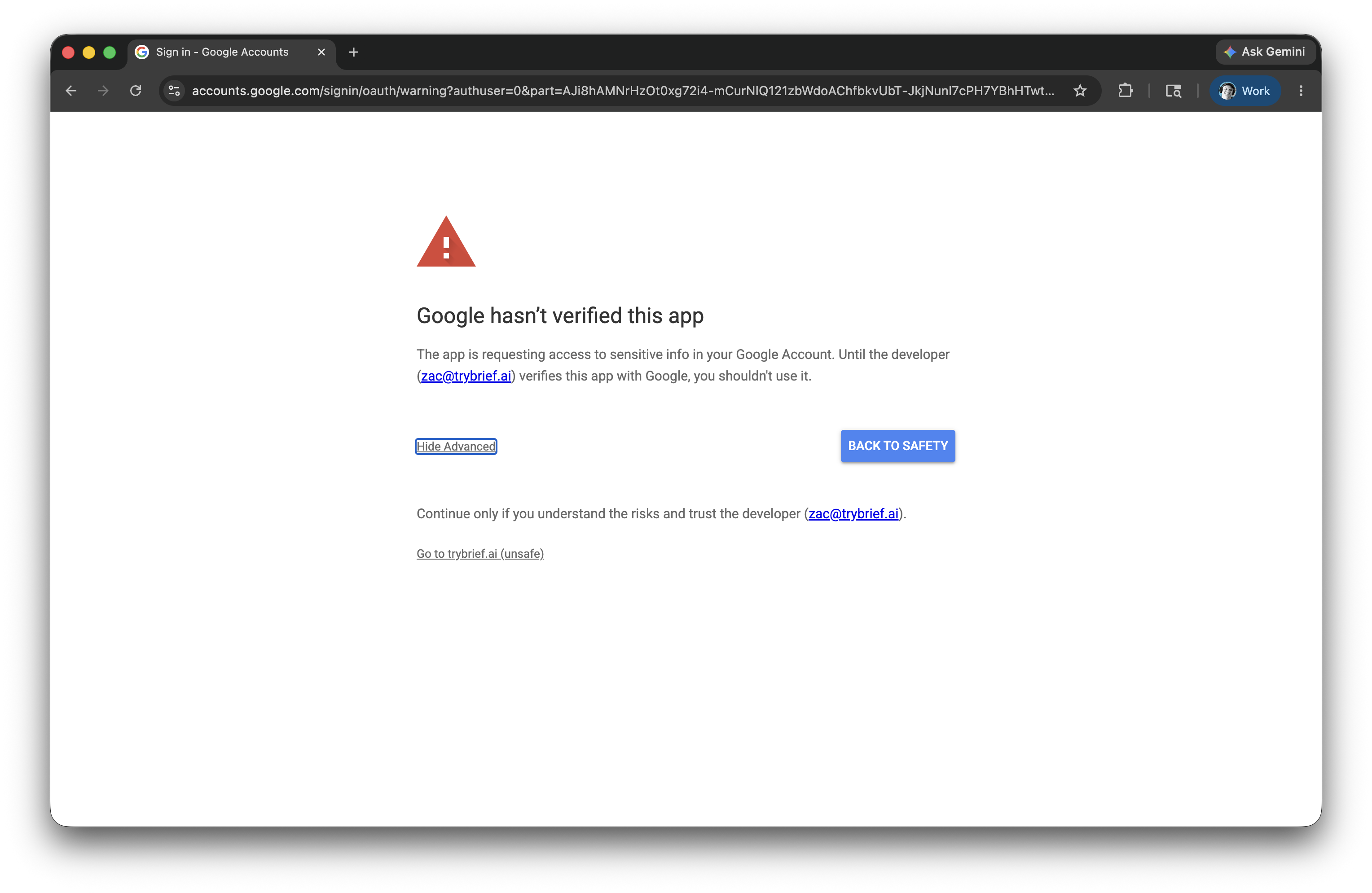
The screen that pauses most Google users. Click through the Advanced section.
This is the screen that causes Google users to pause. Google labels every third-party app this way until verification completes, regardless of the app's actual security posture.
To continue:
- Click Advanced in the lower left of the screen. The view expands to show additional options.
- Click Go to trybrief.ai (unsafe).
You may notice the developer email shown as zac@trybrief.ai. That is the email registered with Google for Brief's OAuth application. It belongs to Zac Sprackett, Brief's CTO and one of the company's co-founders.
Step 3: Approve the permissions Brief requests
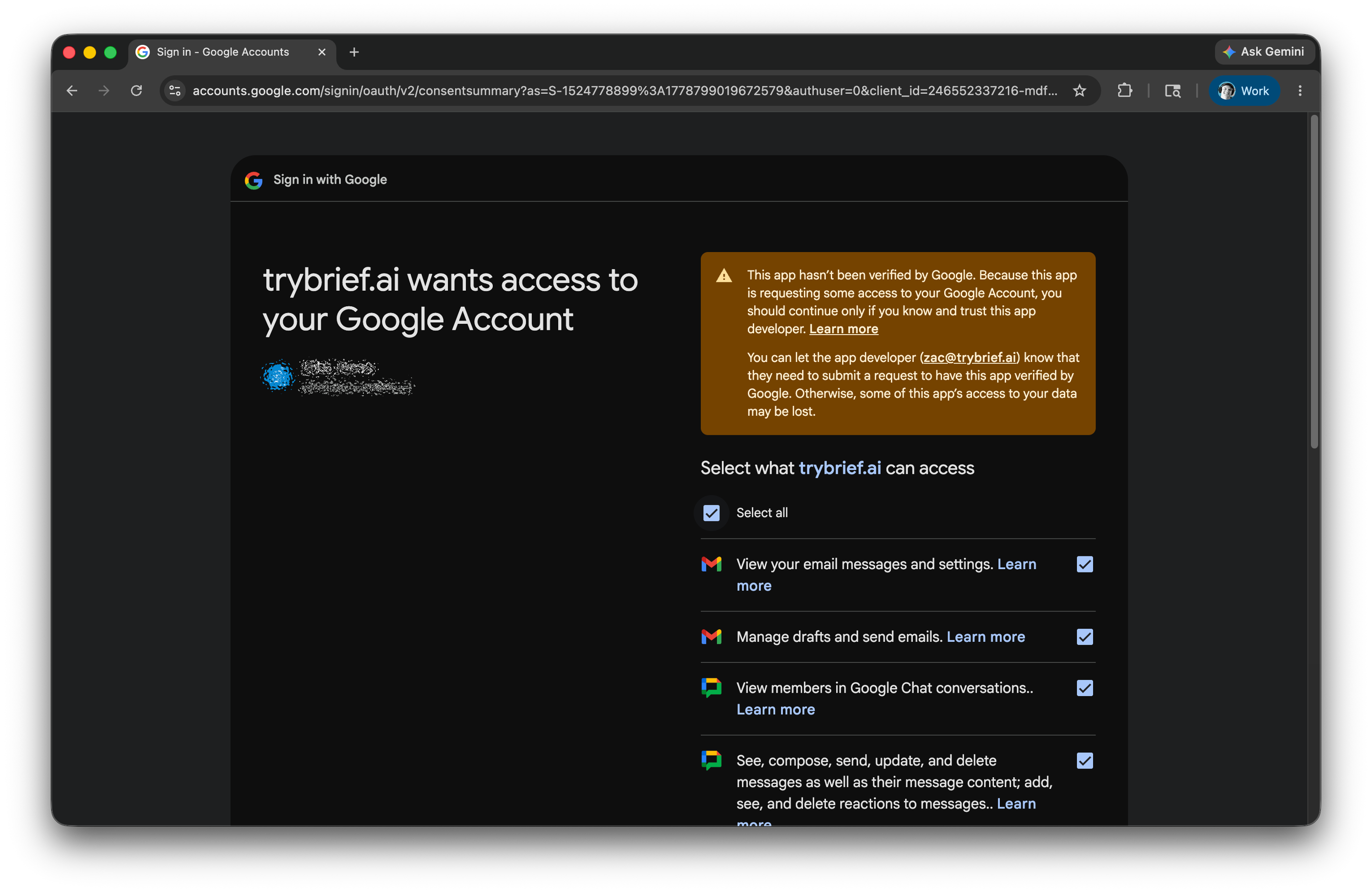
The consent screen lists exactly which Google services Brief is requesting access to.
Brief asks for access to the parts of your Google account it needs to maintain context on your behalf: email, calendar, chat, contacts, and tasks. Each scope is listed individually with a Learn more link.
Leave Select all checked. If you uncheck a specific scope, the related Brief feature will not work until you re-authorize that permission. For example, deselecting calendar access disables meeting briefings.
Click Continue to complete the connection.
Returning users and adding new permissions
If you have connected Brief before, or if Brief later asks for an additional scope (for example, when you add a new integration), Google may show a shorter version of these screens, such as "You're signing back in to trybrief.ai" or "trybrief.ai already has some access." The Advanced step from Step 2 will still appear until verification completes. The same path applies: Advanced → Go to trybrief.ai (unsafe) → Continue.
Why these warnings exist
Google requires every third-party application that requests sensitive scopes to complete a verification review. Brief is in that review process now. The warnings above are the standard prompts Google shows during verification, not an assessment of Brief itself. They are removed for all users once verification concludes.
Granting the permissions in Step 3 does not give Brief employees access to your content. Brief is architected so that no human at Brief can read your data, regardless of which Google scopes you authorize. See Privacy and security for the details.